
Housecall Pro automations fall into two distinct categories: required transactional notifications that fire automatically from job, estimate, and invoice events, and configurable marketing Campaign Flows you build in the Marketing Center to send email, SMS, and postcards in timed sequences. The fastest wins are job reminders, review requests, invoice reminders, and rebooking prompts. Start here, in this order:
- Highest-impact automations to activate first: job confirmation and "on my way" reminders, post-job review requests, unpaid invoice nudges, and 30-day rebooking prompts.
- Immediate action list:
- Open Settings > Notifications > Customer and confirm your ONMYWAY and job reminder messages are active.
- Open Marketing > Campaigns > Automated Campaigns and preview a Job Completed flow.
- If you plan to send SMS, configure your custom text number before activating any campaign step.
Do those three things before reading another word, and you'll have the most important automations either running or staged.
Key Takeaways
Housecall Pro automations deliver the most value when transactional notifications are confirmed first, then marketing Campaign Flows are layered on top with clear triggers, delays, and exit conditions.
| Point | Details |
|---|---|
| Two-category structure | Transactional notifications (Settings > Notifications) handle operations; Campaign Flows handle marketing. |
| SMS requires setup first | Configure your custom text number before activating any SMS campaign step or it will not send. |
| Review requests timing | Send within 2–24 hours of job completion for the highest completion rates. |
| Test before you activate | Send every flow to your own contact first to verify variables, delays, and SMS delivery. |
| Leapify Media audit | A 30-minute automation audit identifies three quick wins and an implementation estimate at no cost. |
Table of Contents
- How Housecall Pro automations are structured
- Where to find and enable each automation
- Automations broken down by feature area
- How to build a Campaign Flow step by step
- Best practices and ready-to-use templates
- Known limits, troubleshooting, and compliance
- How to measure and improve your automations
- Advanced integrations: pairing automations with ads, CRM, and AI
- What Leapify Media builds for home service operators
- A note on priorities from the field
- Useful resources for implementation
- Sources
How Housecall Pro automations are structured
Customer Notifications in Settings explains the split clearly: transactional notifications live in Settings > Notifications and handle real-time job updates, while marketing Campaigns live in the Marketing Center and handle strategic sequences like rebooking and review collection.
Transactional notifications are event-driven and mostly automatic. Some are required and cannot be disabled. They cover job confirmations, tech dispatch alerts, estimate delivery, invoice sends, and payment receipts. Think of them as the operational backbone.
Marketing Campaign Flows are what you build. You choose the trigger, write the messages, set delays, and define exit conditions. These are where you recover unbooking customers, collect reviews at scale, and drive repeat revenue.
Primary automation areas inside the platform:
SMS requires a custom text number configured in your account settings before any SMS campaign step will send. Postcards are available through the Marketing Center for seasonal or rebooking campaigns where physical mail fits the audience. The Email Automation app handles before-job and after-job emails separately from Campaign Flows and uses its own template and scheduling rules tab.
Stat worth knowing: According to Housecall Pro's own resources, businesses that automate customer follow-up after job completion see measurable increases in repeat bookings and referrals — the follow-up timing, not just the message, drives the result.
Where to find and enable each automation
Navigation varies by automation type, so here's the exact path for each:
- Transactional notifications: Settings > Notifications > Customer. Edit templates, toggle channels, and note which ones are marked required.
- Marketing Campaign Flows: Marketing > Campaigns > Automated Campaigns > Create. Choose your trigger, build your sequence, set delays and exit rules.
- Email Automation app: My Apps > Email Automation. Configure before-job and after-job email templates here, separate from Campaign Flows.
- Marketing Center (full suite): Marketing > Marketing Center. Access Campaign Flows, postcard campaigns, and audience targeting from one hub.
- Pipeline automations: Open your Pipeline settings from the CRM or deals view. Set trigger actions tied to pipeline stage changes.
First 10-minute checklist:
- Confirm required transactional notifications are active in Settings > Notifications.
- Set your custom SMS sender number (required before any SMS campaign step fires).
- Preview a Job Completed Campaign Flow in Marketing > Campaigns.
- Send a test message to your own contact to verify variables and delivery.
The Send Automated Campaigns guide notes that you must configure a custom text message number before SMS steps will work. Skip that step and your campaign will appear active but SMS messages will never send.
Automations broken down by feature area
Job automations
The three core job triggers are Before Job (reminder), On My Way (tech dispatch), and Finished (completion). Recommended timing: send the job reminder about one day before the appointment, the ONMYWAY alert when the tech departs, and a thank-you or review request within one hour of marking the job complete. All three support both email and SMS. The Email & SMS communications help page documents the full template library and variable options for each.
Estimate and Pipeline automations
Triggers: Estimate Sent, Estimate Accepted, Estimate Declined. Use transactional notifications for the send and acceptance confirmations, then layer a Campaign Flow for follow-up on unsent or declined estimates. Pipeline automations fire when a deal moves between stages, making them useful for multi-step sales processes like roofing or HVAC replacement quotes.
Invoice and payment automations
Invoice Sent fires a transactional notification automatically. For unpaid invoices, build a Campaign Flow with staggered reminders: three days after the due date, then seven days, then a final notice at 14 days. Payment receipts are transactional and send on confirmation.
Review requests and rebooking
Send the review request within 24 hours of job completion for best recall. A 30-day rebooking nudge works well for recurring services like HVAC maintenance or house cleaning. Tie rebooking prompts to service plan renewals or elapsed time since the last job.

Who receives what:
Three example flows by trade:
- HVAC seasonal tune-up: Job Completed → thank-you SMS (1 hour) → review request email (24 hours) → rebooking offer for next season (90 days).
- Plumbing emergency follow-up: Job Completed → satisfaction check SMS (2 hours) → invoice reminder if unpaid (3 days) → referral ask email (7 days).
- Routine cleaning rebook: Job Completed → review request SMS (4 hours) → rebooking offer with discount (30 days) → final reminder postcard (45 days).
How to build a Campaign Flow step by step
The Campaigns: Step-by-Step Guide walks through the full build process. Here's the condensed version:
- Go to Marketing > Campaigns > Automated Campaigns > Create.
- Choose your trigger: Job Completed, Estimate Sent, Estimate Accepted, or Invoice Paid.
- Select your audience list and apply any filters (customer tags, job type, location).
- Add your first message step: email or SMS. Write the content or use Smart Writer for a draft.
- Insert a delay. Delays are cumulative, meaning each one counts from the previous step's completion, not from the original trigger. A 24-hour delay after a 1-hour delay means the second message sends 25 hours after the trigger.
- Add additional steps (a second email, an SMS, a postcard) with their own delays.
- Set an early exit condition: for example, exit the flow if the customer books another job or pays the invoice. This prevents over-messaging customers who already acted.
- Preview the campaign audience. The platform shows you exactly who will receive the flow before you activate it.
- Enable the campaign.
Sample template: Job Completed flow
- Step 1: Thank-you SMS, 1 hour after job completion. "Hi {{CustomerFirstName}}, thanks for having us out today! We appreciate your business."
- Step 2: Review request email, 24 hours later. "Hi {{CustomerFirstName}}, we'd love your feedback. [Leave a review here]."
- Step 3: Rebooking offer email, 30 days later. "Hi {{CustomerFirstName}}, it's been a month since your last service. Ready to schedule your next visit?"
Pro Tip: Always send a test to your own contact before activating. Verify that variable tokens like {{CustomerFirstName}} populate correctly, that SMS sends from your custom number, and that delays are chained in the right order.
Best practices and ready-to-use templates
SMS templates (copy and adapt):
- Appointment reminder: "Hi {{CustomerFirstName}}, this is a reminder that [Company] is scheduled for tomorrow at {{JobTime}}. Reply STOP to opt out."
- Tech on the way: "{{TechName}} from [Company] is heading your way now. Track your appointment or call us at [Phone]."
- Review request: "Thanks for choosing [Company], {{CustomerFirstName}}! Would you mind leaving us a quick review? [Link]. Reply STOP to opt out."
Email templates (subject lines + opening line):
- Thank you + job overview: Subject: "Your [Company] service is complete" / Opening: "Hi {{CustomerFirstName}}, here's a summary of today's work and what we found."
- Invoice reminder: Subject: "Invoice #{{InvoiceNumber}} is due" / Opening: "Hi {{CustomerFirstName}}, a quick reminder that your invoice is due. Pay securely here: [Link]."
- Rebooking offer: Subject: "Time for your next [Service]?" / Opening: "Hi {{CustomerFirstName}}, it's been a while since your last visit. Book your next appointment in seconds."
Cadence recommendations:
- Job reminder: 24 hours before the appointment.
- Review request: within 2–24 hours of job completion for best recall, per Housecall Pro's follow-up guidance.
- Unpaid invoice reminders: several days after the due date, spaced at intervals.
- Seasonal rebooking: 60–90 days after last service for HVAC, 30 days for cleaning.
Personalization rules: Use {{CustomerFirstName}}, {{JobDate}}, {{TechName}}, and {{InvoiceNumber}} wherever they fit naturally. Keep SMS under 160 characters when possible. For services with a premium feel (custom home renovation, high-end landscaping), lean toward email over SMS for follow-ups. Always include a booking link or payment link as the CTA.
The Smart Writer AI tool inside Campaign Flows generates draft copy quickly, but review every output before sending. AI drafts often miss your brand's specific tone or include generic phrasing that reads as templated to customers.
Known limits, troubleshooting, and compliance
Known limits:
- Some transactional notifications are required and cannot be disabled, per the Customer Notifications help article.
- SMS campaigns require a custom text number. Without it, SMS steps will not fire.
- Campaign delivery depends on list exclusions: customers who have opted out or meet exclusion criteria will not receive messages even if they appear in your audience.
- The Email Automation app and Campaign Flows are separate systems with different template editors and scheduling rules.
Troubleshooting checklist:
- SMS not sending? Verify your custom text number is configured under account settings.
- Campaign not triggering? Check that the trigger event (Job Completed, etc.) is actually firing in your job records.
- Customers receiving too many messages? Review early exit conditions and confirm they are set correctly.
- Variables showing as blank? Send a test to your own contact and check that the job record has the relevant fields populated.
- Wrong audience receiving messages? Preview the campaign list before enabling and review your tag and filter logic.
Compliance reminders:
Every SMS you send must include an opt-out instruction (e.g., "Reply STOP to opt out"). The Telephone Consumer Protection Act (TCPA) governs commercial SMS in the United States and carries real penalties for non-compliance. Use Housecall Pro's built-in opt-out handling and do not manually re-add customers who have opted out. For customers you want to remove from a specific flow without a full opt-out, use tags or early exit conditions to exclude them from that campaign's audience.
Compliance note: TCPA violations can result in fines of $500–$1,500 per message. Housecall Pro's opt-out tools handle the mechanics, but you are responsible for how and when you send.
How to measure and improve your automations
Key metrics to track:
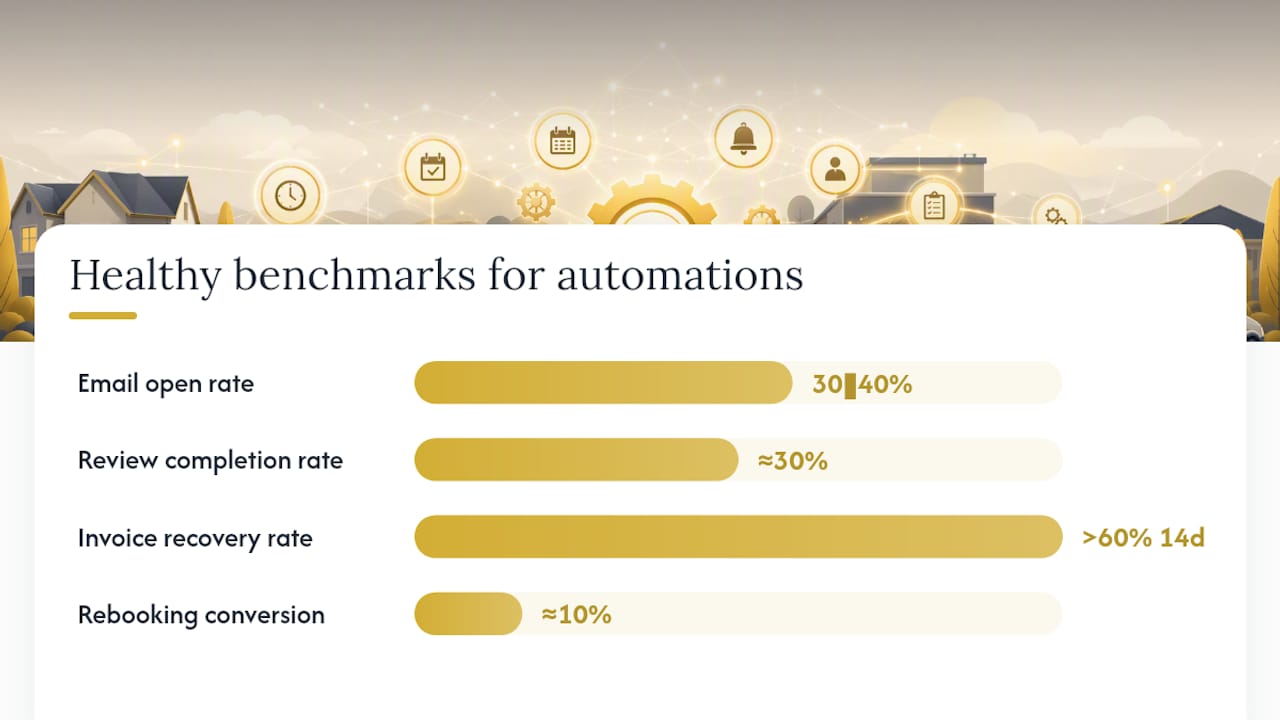
| Metric | Healthy benchmark | Action if below threshold |
|---|---|---|
| Email open rate | 30 to 40% for service businesses | Test a new subject line; shorten preview text |
| SMS delivery rate | high percentage | Verify custom text number; check opt-out list |
| Review completion rate | around 30% of requests | Shorten the ask; send closer to job completion |
| Invoice recovery rate | over 60% within 14 days | Add a third reminder step; include a payment link |
| Rebooking conversion | about 10% of rebooking prompts | Adjust timing or add an incentive |
Where to find reports: Campaign analytics live in Marketing > Campaigns. The Email Automation app has its own reporting tab. Job and invoice dashboards show completion and payment rates separately.
Two-week iteration plan:
- Week 1: Run your current flows without changes. Record baseline open rates, delivery rates, and conversion rates.
- Week 1, days 4–7: A/B test one variable — either the subject line of your review request email or the timing of your first SMS.
- Week 2: Apply the winning variant. Adjust any delay that produced a drop-off. Review exit conditions to confirm customers who acted are leaving the flow correctly.
- End of week 2: Compare against baseline. If a metric improved, lock it in. If not, test the next variable.
Advanced integrations: pairing automations with ads, CRM, and AI
Housecall Pro's native automations cover a lot of ground, but the highest-ROI operators layer them with external systems. A few approaches worth considering:
- Ad retargeting from campaign lists: Export customers who received a rebooking campaign but did not convert, then upload that list to Google Ads or Meta Ads as a custom audience. You're spending ad dollars on people who already know your brand.
- CRM lifecycle scoring: Sync job and invoice data to a CRM to score customers by lifetime value, recency, and service type. Use those scores to trigger higher-value campaigns for top-tier customers. For a deeper look at how this works, CRM automation for home service businesses covers the setup logic.
- AI-generated copy at scale: Housecall Pro's AI assistants include Marketing AI for campaign copy and CSR AI for 24/7 call answering (a paid feature). These speed up content production but require human review before campaigns go live.
- AI dispatch and intent scoring: For businesses running Google Ads or Meta Ads alongside Housecall Pro, connecting an AI dispatch layer that scores inbound leads by intent and routes them to the right tech or follow-up flow can significantly lift booked-job rates. This is where on-premise AI, like what Leapify Media builds, adds a layer that native HCP automations cannot replicate.
When to keep automations in-house: Simple job reminders, basic review requests, and small-scale rebooking campaigns are straightforward to manage internally. If your team can spend 30 minutes a week reviewing campaign performance, you can run these without outside help.
When to bring in a partner: Complex cross-system triggers, ad-to-automation funnels, or situations where you need on-premise AI for data security and lead conversion optimization are the cases where outside implementation pays for itself quickly. For plumbing-specific examples of how AI tools layer into field service workflows, AI for plumbers is worth a read.
What Leapify Media builds for home service operators
Most home service businesses leave significant revenue on the table not because their automations are broken, but because the automations are disconnected from their ads, their CRM, and their dispatch logic. Leapify Media fixes that gap.
Leapify Media builds the full infrastructure: Housecall Pro automation setup, Google Ads and Meta Ads management tied directly to booked-job outcomes, on-premise AI lead dispatch that scores and routes inbound calls before a human touches them, and CRM integration that tracks every customer from first click to repeat booking. If you want to know exactly where your current setup is losing jobs, start with a free automation audit:
- 30-minute review of your current Housecall Pro automation setup.
- Three specific quick wins identified with estimated impact.
- A clear implementation estimate with no obligation.
Book your audit at Leapify Media and get a concrete picture of what your automations should be doing.
A note on priorities from the field
The most common mistake small home service businesses make with Housecall Pro is skipping straight to marketing campaigns before their transactional notifications are solid. A customer who gets a review request but never received a job confirmation has a broken experience, and no amount of clever campaign copy fixes that.
Start with transactional reliability. Confirm every required notification is active and formatted correctly. Then add review and rebooking flows, which are the highest-ROI campaigns for most operators. Only after those are running and measured should you layer in seasonal campaigns, retargeting integrations, or AI-generated content at scale.
Leapify Media's approach with home service clients follows this same sequence: nail the operational layer first, then build the marketing layer on top of it. The businesses that see the biggest gains are the ones who treat automations as a system, not a checklist.
Useful resources for implementation
Official Housecall Pro documentation:
- Customer Notifications in Settings — Official product doc covering transactional notifications, required messages, and template editing.
- Campaigns: Step-by-Step Guide — Official guide to building Campaign Flows, adding steps, setting delays, and using Smart Writer.
- Automated Email Campaigns Overview and FAQ — Official doc for the Email Automation app, covering before-job and after-job email setup.
- Campaigns: Sending an Automated Campaign — Official guide covering audience targeting, exclusions, SMS prerequisites, and cumulative delays.
- AI Assistants for Service Businesses — Official Housecall Pro feature page for CSR AI, Marketing AI, and Analyst AI capabilities.
Leapify Media resources:
- CRM automation for home service businesses — Leapify Media blog post on extending Housecall Pro automations into CRM-driven lifecycle workflows.
- Marketing automation tools for agencies — Leapify Media comparison of automation approaches and when to go beyond native HCP campaigns.
- AI for plumbers — Leapify Media post on applying AI-generated copy and dispatch logic to plumbing service workflows.
Sources
- Customer Notifications in Settings | Housecall Pro Help Center
- Campaigns: Step-by-Step Guide | Housecall Pro Help Center
- Campaigns: Send Automated Campaigns | Housecall Pro Help Center