

Google LSA verification confirms your business identity, licenses, insurance, and background history so you can earn the Google Verified or Google Screened badge and start showing up at the very top of local search results. The screening and verification process covers background checks, business registration, license validation, and insurance review, and it varies by category and state. Verification itself is free. Ad spend is separate, charged per qualified lead after your badge is live.
Three things you can do immediately to get started:
- Confirm Google Business Profile ownership. Google requires a verified Business Profile linked to your LSA account. Log in and confirm you are listed as owner or manager before touching anything else.
- Gather your core documents. Pull your state contractor license, Certificate of Insurance, business registration or EIN, and any DBA filings. Having these ready before you open the LSA dashboard prevents the most common delays.
- Identify every field worker. Background checks are required for owners and all field-facing employees. Collect their names and email addresses now so you can send consent invitations the moment your account is created.
Table of Contents
- What Google actually checks during LSA screening
- Who runs the checks and how long it realistically takes
- Exactly which documents to upload and how to do it in the US dashboard
- Advanced verification: what to expect for high-risk verticals
- What happens when verification fails and how to recover
- How to keep your verification current after approval
- A practical checklist and timeline for completing LSA verification
- Key Takeaways
- The part of LSA verification most businesses get wrong
- Leapify Media cuts your path from application to live ads
What Google actually checks during LSA screening
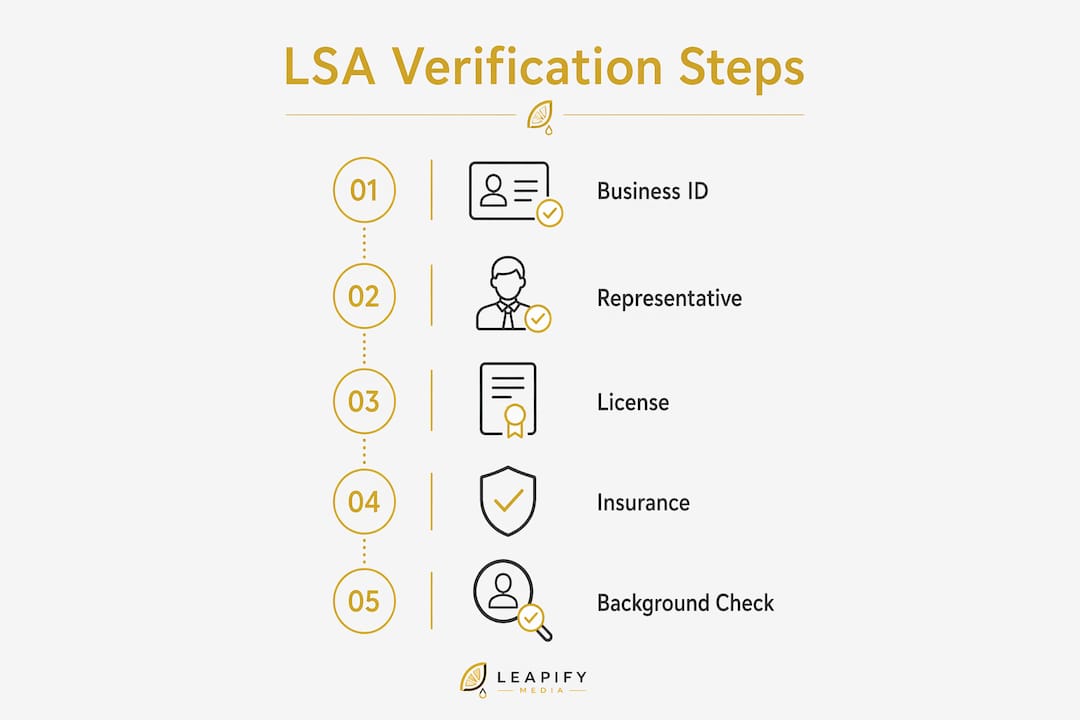
The LSA screening process has five distinct verification layers. Each one can stall your application independently, so understanding what Google is looking for in each layer is worth the time.
1. Business identity and registration
Google verifies that your business is legally registered under the laws of your state. For select US verticals, it does this using your D-U-N-S® number from Dun & Bradstreet (D&B). If your business does not have a D-U-N-S® number or is not registered with D&B, Google accepts a Secretary of State business registration, an EIN from the IRS, or a Department of Revenue registration as alternatives. The document must clearly show your legal business name and the representative's full name.
2. Business representative check
This step confirms that the person setting up the LSA account is actually authorized to represent the business. D&B supplies the initial affiliation data. Google's partner Evident then conducts an identity check requiring a clear, unexpired government-issued photo ID from the business representative. If your name does not appear in D&B's records, you will need to upload supporting registration documents manually.
3. License verification
Google validates state-level licenses against official state databases. For businesses operating across multiple counties or cities, county and city-level licenses must also be confirmed. Every service professional on your roster needs to be appropriately licensed for the locations where they work. The licenses Google has verified appear publicly on your provider profile, which is one reason getting this right matters beyond just passing the check.
4. Insurance verification
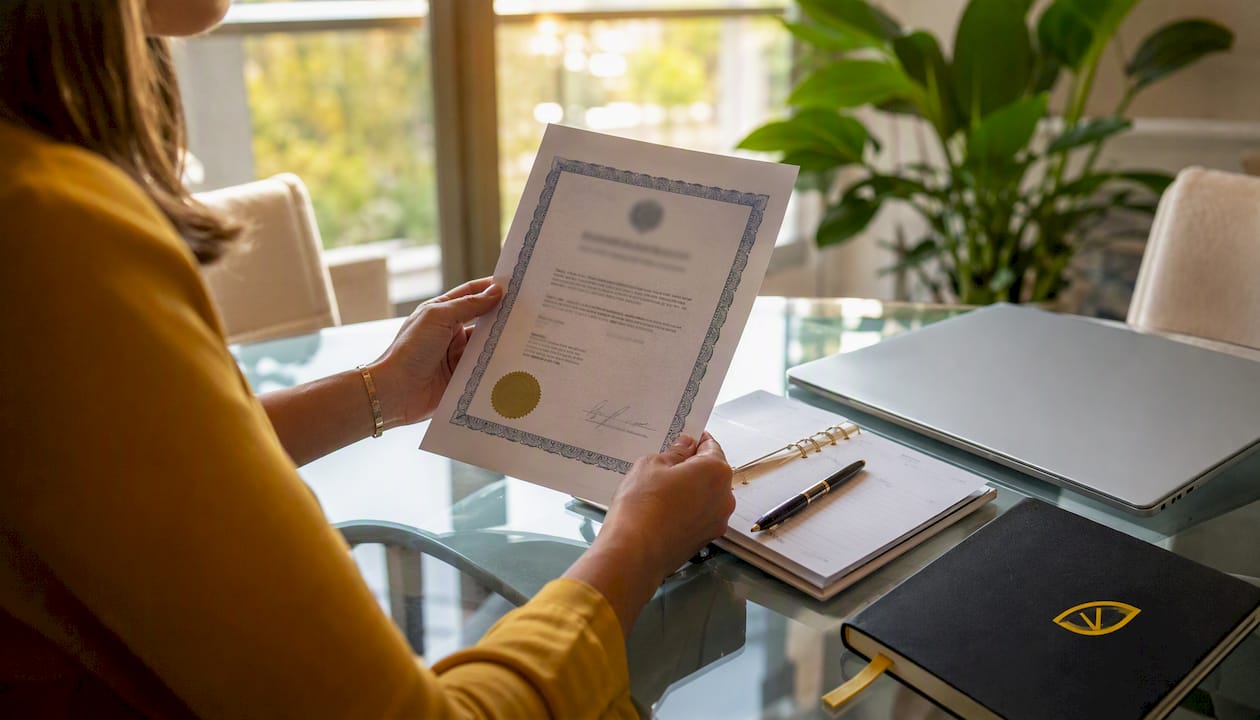
Your Certificate of Insurance must be active and valid for at least 14 days beyond the submission date. The name on the certificate must match the name you used to register for LSA. If your insurance is issued to a different legal entity (a common situation with DBA trade names), you must attach a DBA document proving the affiliation. The policy number must be visible, and the coverage amount must meet or exceed the minimum for your category and state, which Google displays on the insurance upload screen.
5. Background checks
Background checks cover owners and every field worker who enters a customer's home, workplace, or property. The check includes identity verification, criminal history, and cross-checks against national sex offender, terrorist, and sanctions registries. At the company level, Google reviews civil litigation history, including judgments and liens from federal and state courts. There is no credit check involved.
Google Guaranteed vs. Google Screened: Google Guaranteed applies to home service categories (HVAC, plumbing, roofing, electricians, and similar). Google Screened applies to professional service categories like lawyers and financial advisors. The core verification steps overlap, but Google Screened typically requires professional license validation rather than trade licenses, and the insurance minimums differ by profession.
| Verification Layer | What Google Checks | Common Rejection Reason |
|---|---|---|
| Business registration | Legal name, state filing, D-U-N-S® or EIN | Name on document differs from LSA account name |
| Representative identity | Government ID, D&B affiliation | Expired ID, name mismatch with registration |
| License | State and county licenses, database cross-check | Expired license, missing county-level credential |
| Insurance | Certificate of Insurance, coverage amount, policy dates | Policy expiring within 14 days, name mismatch |
| Background check | Criminal history, sex offender/sanctions registries | Incomplete employee consent, identity mismatch |
Pro Tip: Before uploading any document, confirm that the exact legal name on every file matches the name on your LSA account. A single character difference between your insurance certificate and your business registration is enough to trigger a rejection.
Who runs the checks and how long it realistically takes
Google does not handle every verification step in-house. Third-party partners run the most sensitive parts of the process.
- Dun & Bradstreet (D&B): Supplies business registration data and the business representative affiliation list used in the identity step.
- Evident: Conducts the private identity check on the business representative, including government ID verification.
- Background check partners: Google uses third-party screening providers for criminal history and registry checks on owners and field workers. The specific vendor is not publicly named, but the scope (identity, criminal history, national registries) is documented in Google's screening guidance.
Typical timing by step:
- Business application review: 1–3 business days after submission
- Background checks: 3–5 business days per person, though complex cases can run longer
- License and insurance review: 2–7 business days, depending on state database response times
- Full approval (all steps complete): commonly 2–5 weeks, with Google noting the overall process can take up to 30 days
The accelerated verification path is available to select US businesses. Under this model, Google's initial risk-based review may grant you the Google Verified badge quickly, but you then have a firm 14-day window to complete all remaining verification steps. Miss that window and the badge is removed and ads are paused.
The most common bottlenecks are employee non-response to background check consent requests, mismatched names across documents, expired licenses that were not caught before submission, and insurance certificates formatted without a visible policy number or signature. Any one of these can add a week or more to your timeline.
Exactly which documents to upload and how to do it in the US dashboard
The US-specific screening requirements page recommends starting the screening process immediately after creating your LSA account. Here is the document map and the upload sequence that minimizes back-and-forth.
Required documents by category:
| Document | Required Fields | Common Rejection Reason |
|---|---|---|
| Business registration / Secretary of State filing | Legal business name, state, filing date, representative name | Name differs from LSA account |
| EIN confirmation letter (IRS document) | EIN, legal business name | Informal EIN printout without IRS letterhead |
| D-U-N-S® number (if applicable) | D-U-N-S® number, legal name | Business not found in D&B database |
| State contractor license | License number, expiration date, licensee name | Expired, wrong license type for category |
| Certificate of Insurance | Policy number, named insured, coverage amount, effective/expiration dates, signature | Expiring within 14 days, missing signature |
| DBA filing (if trade name differs from legal name) | Legal name, DBA name, state filing | Missing when insurer uses trade name |
| Government-issued photo ID (representative) | Full name, expiration date, photo | Expired, name mismatch with registration |
Step-by-step upload sequence in the LSA dashboard:
- Create your LSA account at ads.google.com/local-services-ads and select your business category and service area by ZIP code.
- Connect your verified Google Business Profile when prompted. If the profile is not yet verified, pause here and complete that step first.
- Navigate to the "Verification" tab. Google will display the specific documents required for your category and state.
- Upload business registration documents first. Use PDF format, scan at 300 DPI minimum, and confirm all required fields are legible before uploading.
- Upload your Certificate of Insurance. Check the expiration date before uploading. If it expires within 14 days, request an updated certificate from your insurer first.
- Upload your state license. If you hold multiple licenses (state and county), upload each one separately.
- If your trade name differs from your legal entity name, upload the DBA document immediately after the insurance certificate in the same session.
- Initiate background checks for yourself and every field worker. Each person receives an email invitation to complete their portion through Google's screening partner.
Pro Tip: Send background check invitations to all field workers on the same day you submit your business documents, not after. Running both in parallel typically cuts 1–2 weeks off your total setup time, since employee screening is frequently the last step to clear.
Advanced verification: what to expect for high-risk verticals
Some categories face a higher risk of fraudulent or misleading advertising, so Google requires Advanced Verification for them. In the US, locksmiths and garage door services are the most commonly cited examples, but the list can expand as Google updates its policies.
What triggers Advanced Verification:
- Operating in a category Google has designated as high-risk for identity fraud or consumer harm
- Advertising in a location where that category has a documented history of misuse
- Signals from Google's initial risk-based review that flag the account for deeper review
Additional steps in the Advanced Verification process:
- A review of your Google Ads account history (if you have one), including any prior policy violations
- Cross-checks against publicly available state registrations and professional license databases
- A video interview conducted by Google, recorded, and reviewed against your submitted documents
- Deeper business registration validation, which may include D-U-N-S® cross-checks even if your category does not normally require them
The video interview covers professional license validity, business registration accuracy, and whether your business has engaged in any unauthorized or misleading practices. Google's verification criteria require full, complete, and accurate answers. Partial answers or inconsistencies between your interview responses and your submitted documents are grounds for denial.
Pro Tip: Before your video interview, assemble a single evidence packet: all licenses in one folder, your Certificate of Insurance, your business registration, and your DBA filing if applicable. Use consistent file names (e.g., "StateLicense_TX_2026.pdf") and designate one person as the point of contact for all Google communications. Fragmented responses from multiple contacts are a common reason Advanced Verification drags on.
If your account is flagged for Advanced Verification while on the accelerated path, the 14-day completion window still applies. Prepare your evidence packet before you submit the initial application so you are not scrambling if the deeper review is triggered.
What happens when verification fails and how to recover
Failure has three possible consequences, depending on severity: badge removal (your ads continue but without the Google Verified badge), ad pause (ads stop serving until the issue is resolved), or account suspension (full removal from LSA). The dashboard will display a failure code and a description of what Google needs to proceed.
Step-by-step recovery process:
- Read the failure notification carefully. Google specifies the exact document or step that failed. Do not resubmit the same document without fixing the underlying issue.
- Diagnose the root cause. The most common causes are name mismatches between documents, an expired license or insurance certificate, an employee who did not complete their background check consent, or a missing DBA filing.
- Fix the document before re-uploading. For insurance, contact your broker and request a corrected certificate with the exact name used on your LSA account. For licenses, renew through your state licensing board before uploading. For employee background checks, send a direct follow-up to the employee with a clear deadline.
- Resubmit through the dashboard. Navigate to the "Verification" tab, locate the failed item, and upload the corrected document. Google will re-review the specific item rather than restarting the entire process.
- Submit a formal appeal if the account is suspended. Go to the "Account Status" section in your LSA dashboard and follow the appeal link. You may only submit one appeal, so review Google's Advanced Verification policies thoroughly before doing so.
- Contact Google support directly if the dashboard shows no clear failure code, if your appeal has been pending for more than two weeks, or if you believe the failure was caused by a system error rather than a document issue.
For name and address mismatches, the fix is normalization: pick one canonical legal name and use it identically across your Google Business Profile, LSA account, business registration, insurance certificate, and license. Even minor differences like "LLC" vs. "L.L.C." or a missing suite number can trigger a mismatch flag.
How to keep your verification current after approval
Verification is not a one-time event. Google re-evaluates advertisers on an ongoing basis, and a change in your business's risk profile can trigger a follow-up review at any time. Failing to respond to a follow-up review can remove your badge, pause your ads, or suspend your account.
Ongoing obligations to manage:
- License renewals: Google validates licenses against state databases. When your license expires, the mismatch is detected automatically. Upload your renewed license before the expiration date, not after.
- Insurance renewals: Your Certificate of Insurance must remain active. When your policy renews, request the updated certificate from your broker and upload it to the LSA dashboard before the old one expires.
- Adding field workers: Every new employee or contractor who will enter customer properties must complete a background check before they appear on your active roster. Initiate the invitation as part of your onboarding process, not after the employee starts working.
- Removing field workers: When an employee leaves, remove them from your LSA roster promptly. An inactive employee flagged in a background re-check can create compliance issues.
- Business changes: If your legal name, address, or ownership structure changes, notify Google and update your documents. The Advanced Verification policies explicitly require prompt notification of any changed circumstances that could affect your verification status.
Pro Tip: Set calendar reminders 60 days before every license and insurance expiration date. That window gives you enough time to renew, receive the updated documents, upload them, and clear Google's re-verification review before the old documents expire. A 30-day buffer sounds reasonable until you factor in a slow state licensing board or an insurer who takes two weeks to issue a corrected certificate.
For local SEO for contractors, keeping your Google Business Profile accurate and your LSA verification current work together. A verified profile with an active badge consistently outperforms unverified listings in local pack rankings.
A practical checklist and timeline for completing LSA verification
Most US home service businesses can complete the process in a few weeks if documents are complete at the start. More complex cases or slow state databases can extend this timeline.
Week-by-week action plan:
- Day 1: Account setup and document collection. Create your LSA account, connect your Google Business Profile, select your service categories and ZIP codes, and confirm your profile ownership. Gather all documents (license, COI, business registration, EIN, DBA if applicable) and check every expiration date.
- Day 1–2: Submit business documents. Upload business registration, EIN or D-U-N-S® number, state and county licenses, Certificate of Insurance, and DBA filing if needed. Confirm all names match exactly across every document.
- Day 1–2 (parallel): Initiate all background checks. Send consent invitations to every field worker and owner on the same day you submit business documents. Do not wait for business documents to clear first.
- Days 3–7: Monitor and respond. Check the dashboard daily. If Google flags a document, correct and resubmit within 24 hours. Follow up directly with any employee who has not completed their background check consent.
- Week 2: License and insurance review window. Most license and insurance checks complete within this window. If your state database is slow, this step can extend to week 3.
- Weeks 2–4: Background check completion. Background checks for all field workers typically clear within 3–5 business days each, but the clock starts when the employee completes consent. Chase non-responders aggressively.
- Week 3–5: Full approval. Once all steps clear, your badge activates and ads begin serving. If you were placed on the accelerated path, confirm that all remaining steps are complete before the 14-day deadline.
Items that most commonly block approval and should be handled first:
- Name consistency across all documents (fix before submitting anything)
- Employee background check consent (initiate on Day 1, follow up on Day 3)
- Insurance certificate expiration (request updated COI before opening the dashboard)
- State license validity (renew before applying if expiration is within 60 days)
Key Takeaways
Google LSA verification requires consistent documentation, parallel background checks, and active ongoing maintenance to keep your badge live and your ads running.
| Point | Details |
|---|---|
| Start with profile ownership | Confirm Google Business Profile ownership before opening the LSA dashboard. |
| Name consistency is non-negotiable | Every document must use the exact same legal name as your LSA account or expect rejections. |
| Run background checks in parallel | Initiate employee screening on Day 1 alongside business documents to cut 1–2 weeks off setup. |
| Plan for 2–5 weeks end-to-end | Most US businesses complete verification in 2–5 weeks; some cases can extend to up to 30 days if there are delays with licenses or background checks. |
| Leapify Media accelerates the process | Leapify Media handles document intake, name normalization, and employee screening coordination for home service clients to reduce setup friction and rejections. |
The part of LSA verification most businesses get wrong
Most guides treat LSA verification as a checklist problem. Submit the right documents, wait a few weeks, done. That framing misses the part that actually causes delays and failed accounts.
The real issue is name governance. Every document in your verification stack, your Google Business Profile, your state license, your Certificate of Insurance, your business registration, your DBA filing, must carry the exact same legal name. Not close. Exact. Home service businesses are particularly exposed here because they often operate under a trade name, carry insurance under a slightly different entity, and registered with the state years ago under a name that has since evolved. By the time they apply for LSA, they have three or four variations of their business name floating across documents, and Google's automated matching flags every one of them.
The second thing most businesses underestimate is the employee bottleneck. Owners focus on their own documents and treat the field worker background checks as an afterthought. Then they wait two weeks for business documents to clear, send out background check invitations, and discover that two technicians have not responded. That sequence adds a full week to the timeline for no reason. Sending invitations on Day 1 costs nothing and frequently saves the most time.
Advanced Verification is the third area where preparation matters more than people expect. Locksmiths and garage door companies in particular often learn about the video interview requirement only after they have already submitted their application. Walking into that interview without a consolidated evidence packet and a single designated spokesperson is how accounts get flagged for inconsistencies that would have been easy to avoid.
The underlying pattern is the same in all three cases: the businesses that clear verification fastest are the ones that treated it as an infrastructure project before they opened the dashboard, not a form-filling exercise after.
Leapify Media cuts your path from application to live ads
Getting verified is the prerequisite for everything else in your LSA strategy. The badge is what separates your listing from unverified competitors at the top of local search. But the verification process itself is where most home service businesses lose weeks to document rejections, employee non-response, and name mismatches they did not know existed.
Leapify Media handles the full verification workflow for home service clients: document intake and name normalization, license and insurance validation before submission, employee background check coordination with SLA-backed follow-up, and dashboard monitoring through to badge activation. After approval, the same infrastructure connects your Google Ads management and AI-powered lead dispatch to turn verified leads into booked jobs. Home service operators working with Leapify Media skip the back-and-forth that extends typical timelines and move directly to a live, optimized ad account. See exactly what that looks like for your business at leapifymedia.com.
Useful sources and official Google resources
- Understand the screening and verification process (Google Local Services Help): The primary official reference for all verification components, re-evaluation policy, D-U-N-S® requirements, background check scope, and the accelerated verification path. Start here.
- Business screening and verification requirements — United States (Google Local Services Help): The US-specific requirements page. Confirms which checks apply to your category and state, and recommends starting screening immediately after account creation.
- How providers qualify for Local Services Ads (Google Help): Explains the Google Business Profile connection requirement and who must be listed as owner or manager to complete verification.
- Advanced Verification for advertisers (Google Ads Help): Covers the video interview process, verification criteria, appeal instructions, and the categories subject to deeper review including locksmiths in the US.
- Leapify Media — Growth Infrastructure for Home Service Companies: For home service operators who want professional help with document intake, verification coordination, and post-approval ad management.